
SwissSign MPKI
Connect Horizon to SwissSign MPKI to request, renew, and revoke SwissSign certificates.
This guide walks through connecting Horizon to SwissSign MPKI so that Horizon can request, renew, and revoke certificates from SwissSign on your behalf.
Prerequisites
SwissSign MPKI subscription
If your organisation does not yet have an MPKI contract, order one at swisssign.com/en/pki-certificates/mpki.html. Once the contract is active, SwissSign provisions an RA (Registration Authority) account and sends your credentials by email.
If you already have an MPKI subscription, proceed to the next section.
Retrieve your MPKI credentials
Your RA credentials are available in the SwissSign MPKI portal at ra.swisssign.ch.
- Log in with the administrator account provided by SwissSign.
- Navigate to My Account > Service API Keys.
- Copy your Service account and API Key.
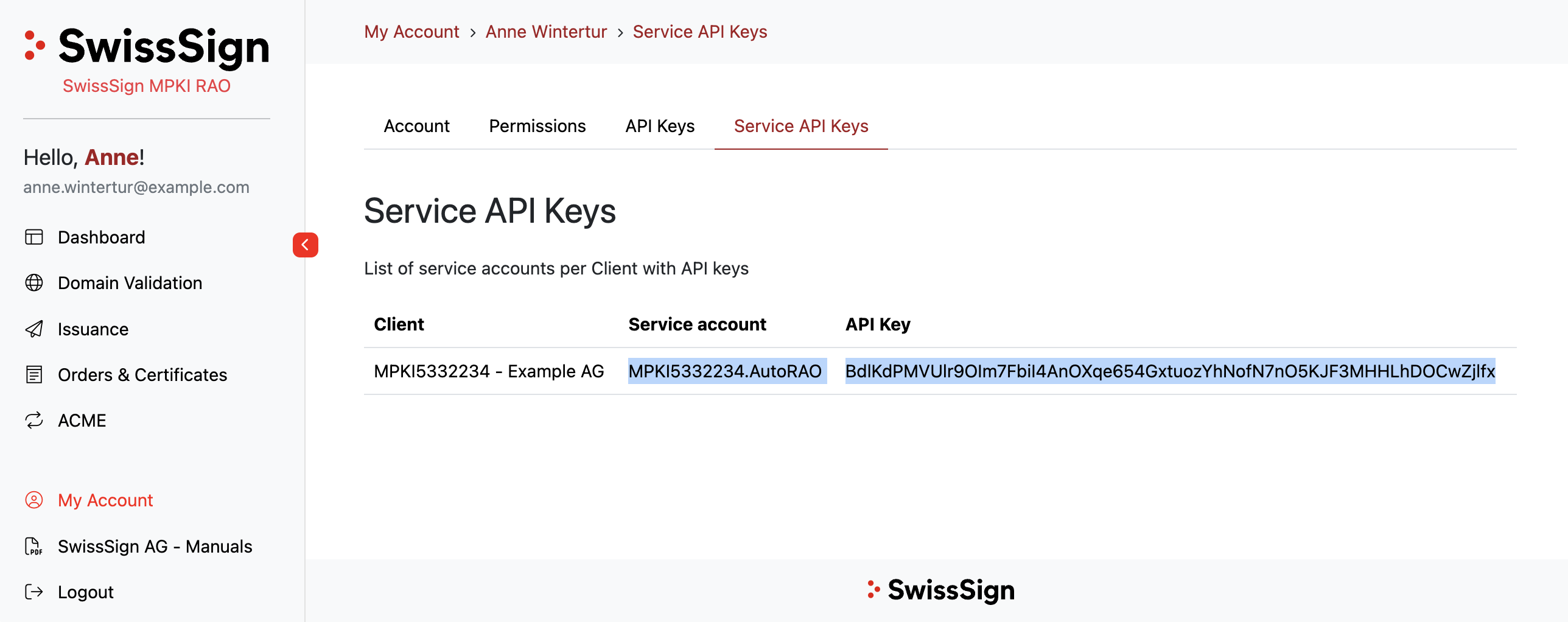
Keep these values at hand — you will need them in the next step.
Step 1 — Create credentials for SwissSign MPKI
-
In Horizon, go to Security > Credentials
-
Click Add a Credential
-
Fill the different attributes:
Field Value Credentials Type Select Login. Name A unique label for this credential (e.g. swisssign-mpki).Target Select PKI Connectors. Login Enter the Service account from your SwissSign MPKI account. Password Enter the API Key from your SwissSign MPKI account.
Step 2 — Create the PKI connector
- In Horizon, go to PKIs > PKI Connectors.
- Click Add a PKI connector.
- Select PKI Type SwissSign and click Next.
- Give a unique label for this PKI connector, considering you may have multiple depending on the products (e.g
swisssign-dv-single-domain). - Select the SwissSign endpoint (Production or Pre-production), the credentials previously created and click Connect.
- Select the Product you want to use for this PKI Connector. The list of products depends on the products available in your MPKI. Confirm by clicking on Save.
Step 3 — Add SwissSign Trust Chain in Certification Authorities
For use cases that require Horizon to validate or chain SwissSign certificates — such as EST certificate swap — you must import the SwissSign issuing CA and its trust chain into Horizon's Certification Authorities.
All SwissSign CA certificates and corresponding CRLs are available in the official repository: swisssign.com/en/support/ca-prod.html.
- Download the issuing CA certificate and the full chain (root + intermediates) matching your product.
- In Horizon, go to Certification Authorities.
- Click Add a CA and import each certificate in the chain with its CRL URL (HTTP only), starting from the root.
Refer to the Certification Authorities page for the full configuration options.
Certification Authorities reference
Every SwissSign TLS and S/MIME CA is listed below with its trust settings and revocation endpoint. CAs are grouped by status: Active CAs are the ones to use for new issuance (e.g. the 2022 TLS ICAs), while Legacy CAs are superseded but must stay configured so Horizon can still validate and revoke certificates issued under them.
Next Steps
Your Certification Authorities now form the application's trust store. The usual next step is to create a Certificate Profile, which defines what certificates can be issued and ties them to the appropriate CA.
Troubleshooting
| Symptom | Likely cause | Fix |
|---|---|---|
| Connection test fails with 401 | Wrong credentials | Verify credentials are correct for the correct Endpoint. |
| Expected product not available | Wrong MPKI or wrong endpoint | Verify credentials are targeting the correct MPKI and that you have access to the expected Policy Name. Contact our support for any question. |